Please note: This post is about a personal tool I wrote for my email. The assumptions it makes may not work for you, but you can probably tweak it. It’s a single Google Apps Script file, and calls whichever LLM it’s given an API key for. If you run it, some metadata and the first few hundred characters of each email it looks at will be sent to the LLM provider.
These days, a lot of email isn’t correspondence – it’s bank notifications, delivery updates, receipts, school newsletters, club announcements, and social media updates. Triaging this feels like a chore – to the point that many don’t even bother.
AI agents, of course, promise to end this chore. But in brief evaluations, they never quite worked the way I’ve been working these past many years. I’ve built up a set of Gmail labels to help me triage and organize mail, and I’d like to keep using them.
I have also tried using filters, and they’ve been less than helpful – keeping them up to date is a real maintenance burden. They work well for a sender with one fixed address, but a bank can send from half a dozen subdomains, and online shops change their sending domains whenever they switch email vendors. Every new one means another filter to update.
This is a reasonable job to give to an LLM, but I really don’t want to trust it blindly. So before writing a triage tool, I settled on three rules:
- It only ever adds labels. It never deletes, archives or marks anything as read.
- Every decision is written down with a reason, somewhere I can read it later.
- When it isn’t confident, it leaves the email alone.
Labels and Plain English#
I want my email triaged into labels I’ve been using for ages.
The model needs to know what each label is for, but Gmail doesn’t store descriptions along with labels. So the script keeps its configuration in a Google Sheet. On first run, it creates a spreadsheet called “Gmail Triage Config”, saves its ID to Script Properties, and fills a Labels tab with labels it finds. You need to add a description for these. You can also remove labels you don’t want triaged.
syncGmailLabelsToSheet() adds new labels and domains if you create them after the first run.
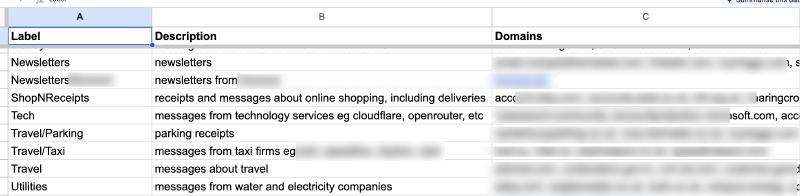
The descriptions are what help the model decide where each email belongs, so making them clear and specific is worth the effort. For example, instead of just saying “Shopping”, try “Receipts and emails about online orders, including delivery updates”. This gives the model a much better idea of what to look for.
The Domains column comes from email history. populateLabelDomains() walks through the most recent 200 threads under each label and records the domain of the sender of the first message in each thread (common webmail domains such as Gmail, Outlook and Yahoo are excluded). The scan writes each row back to the sheet as it finishes, so if it hits the Apps Script time limit (about six minutes), running it again picks up where it stopped.
What the Model Sees#
For each thread, the script builds a short block of text from the first message:
From: Example Bank <alerts@alerts.examplebank.com>
Sender Domain: alerts.examplebank.com
Labels Historically Matching This Domain: Banking
Subject: Your statement is ready
Date: Tue Oct 20 2026 08:14:02 GMT+0100
Body Snippet: Your October statement for the account ending 1234 is now available...
The “Labels Historically Matching This Domain” line is a lookup against the Domains column. It is often the strongest single signal, but it isn’t decisive. A shop might send both receipts and delivery updates from the same domain, and then the subject and snippet have to settle it. The snippet is capped at 300 characters, which is usually enough to classify an email without shipping its whole contents to a third party. Along with this text, the model gets the list of labels and their descriptions, and has to pick exactly one of them, or Other.
One-Time Codes#
One category gets special treatment. Verification codes and magic sign-in links arrive from many services, they’re useful for about five minutes, and they have nothing to do with the sender’s usual label. So the script checks for these first, and files them under a label called onetimecode no matter which domain they came from – making it really easy to remove later.
Two LLM Providers#
The script supports two classifiers:
const PROVIDERS = {
  gemini: {
    name: "Gemini",
    apiKeyProperty: "GEMINI_API_KEY",
    classifyFn: callGeminiClassification,
    sleepMs: 300
  },
  jev: {
    name: "Jev",
    apiKeyProperty: "TYPESAFE_API_KEY",
    classifyFn: callJevClassification,
    sleepMs: 200
  }
};
Adding a third (e.g., Cloudflare’s Clef) is easy enough: write a function and register it.
Each classifyFn takes the metadata block, an API key and the label configuration, and returns { category, reasoning }, or null if the call failed.
The Gemini version sends a prompt to Gemini 2.5 Flash with a JSON response schema. The schema limits the category field to an enum of your label names plus onetimecode and Other, so the model cannot invent a label, and it requires a one-sentence reasoning alongside the choice.
The default is Jev, TypeSafe AI’s decision model, and it suits this job well because it returns probabilities rather than prose. In a single call the script asks it two questions: a yes/no question, “is this a one-time code or magic link?”, and a multiple-choice question over the labels. The code then applies its own thresholds. A one-time-code probability of 0.75 or higher wins outright. Otherwise the top label is used only if its probability is at least 0.50, and anything below that becomes Other. Those numbers are constants at the top of the function. I picked them by looking at the log – you may well want different ones.
Jev is much faster than Gemini, but Gemini does much better when more reasoning is required. For my email, however, Gemini is overkill, and Jev is both faster and cheaper.
Leaving Some Emails Alone#
By default the script searches for:
category:primary has:nouserlabels -label:AutoClassifiedSo it only looks at the Primary tab, and only at threads that have no labels yet. Already-labelled threads are thus left alone. When it does classify a thread, it applies the chosen label and a second label, AutoClassified, which marks the thread as handled and keeps it out of the next run’s search.
When the answer is Other, or the API call fails, the script applies nothing at all. The thread stays exactly as it was, and you can find everything the model gave up on by searching for -label:AutoClassified in Gmail.
Making Triage Explainable#
Every decision, including the Others, is appended to a Triage Log tab in the same spreadsheet:
| Timestamp | Subject | Reasoning | From | Sender Domain | Category | AutoClassified |
|---|---|---|---|---|---|---|
| 25/10/2026 09:02 | Your statement is ready | Jev: choice=“Banking” (prob=0.921) | is_onetimecode=0.004 | Example Bank <alerts@…> | alerts.examplebank.com | Banking | TRUE |
| 25/10/2026 09:02 | Your sign-in code | Jev: is_onetimecode=0.973 (>= 0.75) | top label=Receipts (0.611) | Example Shop <no-reply@…> | email.exampleshop.com | onetimecode | TRUE |
| 25/10/2026 09:03 | Quick question about Saturday | Gemini: The subject mentions ‘Cubs’ and the signature mentions ‘Akela’, which suggests a Cub Scout activity, but the message is too short to say which label it belongs under, so it falls back to ‘Other’. | Sam <sam@…> | gmail.com | Other | FALSE |
The Reasoning column really helps me understand when the results aren’t what I expected. When the script files something in the wrong place, the log shows whether the model was confident and wrong, which usually means a description needs rewriting, or barely over the threshold, which means the threshold might be too low. Because the log lives in a spreadsheet, it can be sorted and filtered like any other spreadsheet: every Other from last week, say, or every email from one domain.
Undoing a decision is easy – using the usual Gmail features. Search for label:AutoClassified label:Receipts, select whatever looks wrong, and remove both labels. The thread is now unlabelled again and will be picked up on the next run, or I can label it myself. Nothing was deleted or moved, so there is nothing to restore.
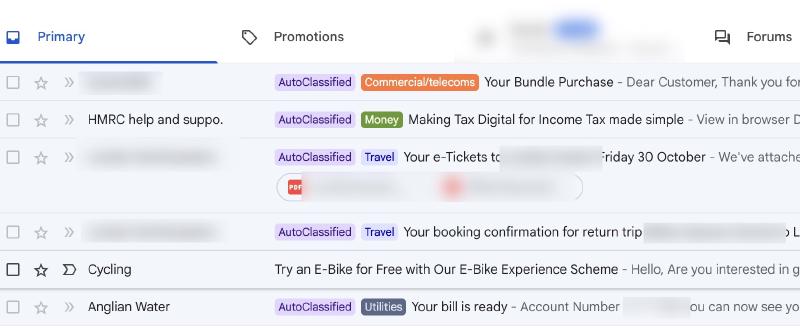
In the end, my inbox looks like this, and in the couple of weeks I’ve been running it, it’s never been easier to keep it organized. And Jev is pretty inexpensive; I’ve not yet spent $0.50 on running it.
Apps Script Limits#
Google Apps Script stops any execution after six minutes, so both long-running functions check the clock and exit cleanly after four and a half. The classifier fetches threads in batches of 25 and loads all of a batch’s messages in a single call. It also waits briefly between emails, both to stay under Gmail’s rate limits and to be polite to the API provider. Responses with HTTP status 429 or 503 are retried up to three times with exponential backoff. Each run handles 200 emails by default, so a backlog clears over several runs, and after that each run deals with whatever arrived since the last one.
To run it unattended, give classify() a time-driven trigger. You can add one from the Triggers page of the Apps Script editor, or create it in code by adding a function like this to the script and running it once:
function createSchedule() {
  ScriptApp.newTrigger('classify')
      .timeBased()
      .everyHours(12)
      .create();

  Logger.log('12-hour trigger created successfully.');
}
Setting Up#
Set the script up with these steps:
- Paste
gmail-triage.gsinto a new Apps Script project. - Add
TYPESAFE_API_KEY(orGEMINI_API_KEY) under Project Settings → Script Properties. - Run
classify()once. It will create the config spreadsheet and then stop, asking you to fill in the descriptions. - Write the descriptions, delete the rows for any labels you don’t want it to use, and run
populateLabelDomains(). - Run
classify()again, read the Triage Log, adjust, and add a trigger once you’re happy with what it does.
Auto-Archiving#
I haven’t set the script to archive anything. I like seeing what came in, even if it’s already labelled. If you’d rather auto-archive some categories, the change is one line in the branch that applies labels:
if (autoClassified) {
  applyGmailLabel(thread, result.category, labelCache);
  applyGmailLabel(thread, "AutoClassified", labelCache);
  // optional: label and get out of the way
  if (result.category === '...') thread.moveToArchive();
  // ...
}
Final Thoughts#
The script makes mistakes. It’ll occasionally file a marketing email as a receipt, or give up on something a person would have recognized at a glance. What it never does is make a mistake you can’t see or can’t undo. The rules I started with – labels only, a log of every decision with its reason, and leaving uncertain emails alone – matter more than which model sits behind them, and they’re why I’m comfortable leaving it running unattended.
The script’s a Gist on GitHub. If you try it out, please let me know what you think!